Getting Started
Check your inbox
After you buy M1 Spreadsheet on Gumroad, the email address used for the purchase is granted access to the Google Drive folder with the spreadsheet files. In Google Drive, open the Shared with me section.
If the purchase email is not connected to a Google account, use one of these options:
- Reply to the Gumroad purchase email with the Gmail address that should get access.
- Add the purchase email as a secondary email on your Google account.
- Create a Google account using the same email address you used on Gumroad.
Create your own copy
- Open the shared Google Drive folder.
- Open one of the spreadsheet files.
- Choose File > Make a copy.
- Pick the name and Google Drive folder for your copy.
- Use your copy, not the shared original.
The product includes two starting points:
- JC Dividend Growth: Joseph Carlson’s portfolio already set up.
- Blank template: Editable cells left empty for your own portfolio.
Set up your sheet
Editable cells use a yellow background. Other areas are protected so you do not accidentally change formulas or generated sections.
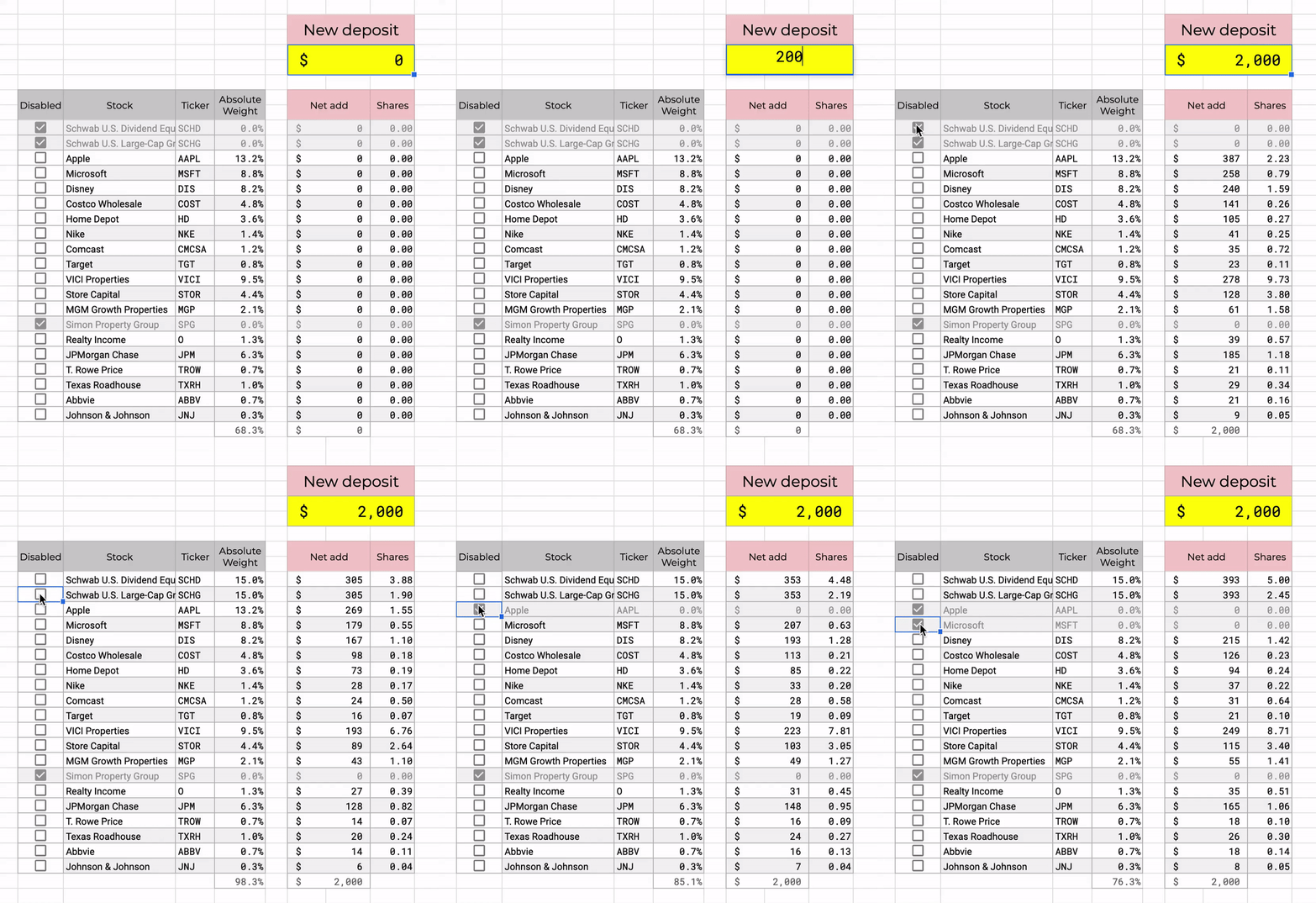
If you know your way around spreadsheets and want deeper customization, you can disable or edit protected ranges. See Advanced Options.
Use another spreadsheet app
Google Sheets gives the best experience because M1 Spreadsheet uses Google Finance and Google Apps Script. If you prefer Excel, LibreOffice, Numbers, or another app:
- Open the spreadsheet in Google Sheets.
- Choose File > Download.
- Pick the format you want, such as
.xlsxor.ods. - Open the downloaded file in your chosen app.
Some script-powered settings are only available in Google Sheets.